Adding a Google account to Calendar on a Mac
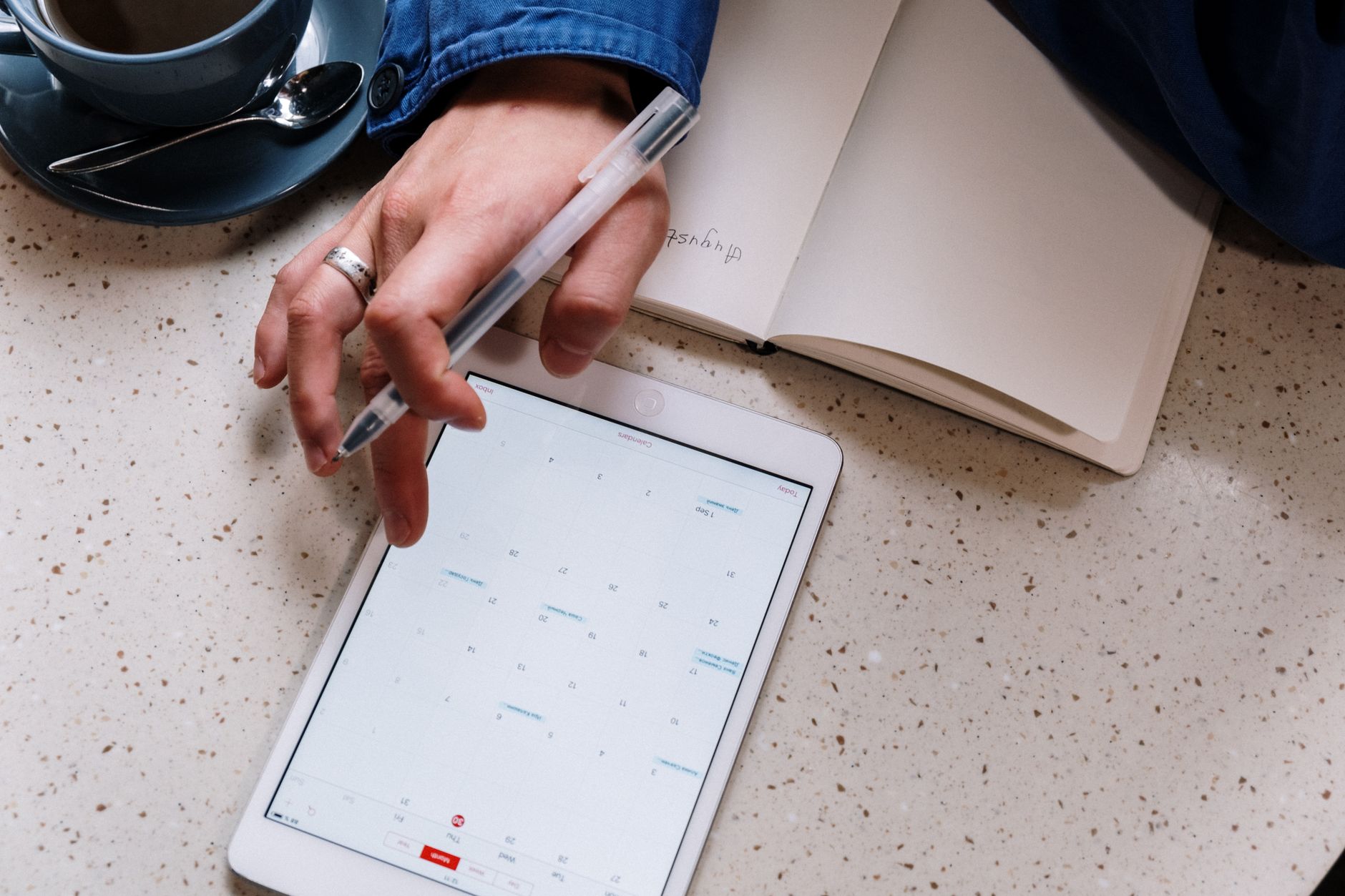
Adding Google Calendar to a Mac is a five minute job that regularly takes an afternoon. The five minutes are the account connection itself. The afternoon happens when the sign in sheet returns an error, or the account connects and the calendar that mattered is not there.
This walks the connection itself, then the places it goes wrong, in the order they are worth checking. It assumes the goal is a working two way connection, where events created on the Mac appear in the browser and the reverse, rather than a read only view.
Before starting: what will and will not be connected
Two decisions are already made by the mechanism, and knowing them prevents a wasted hour later.
Google events will appear on the Mac and stay editable. Events created on the Mac in a Google calendar go back to Google. This part is genuinely two way.
iCloud events will not appear in Google Calendar. Connecting a Google account adds a Google account to the Mac; it does not merge anything. Anyone expecting one pool of events visible from both the Google web interface and the Mac needs to choose which account new events belong to, because the connection does not make that choice for them.
Google also names three features that stop working when a Google calendar is used through a calendar application rather than the browser: email notifications for events, creating new Google calendars, and Room Scheduler. None of those are affected by which Mac application is used, so there is no point shopping for an application that restores them.
The two doors, and why both exist
macOS keeps account credentials in one place and lets each application ask for them. That is why the same Google account can be added from two screens with the same result.
From inside Calendar: open Calendar, then Calendar in the menu bar, then Settings. On macOS versions before Ventura that item reads Preferences. Open the Accounts tab, click the plus button below the account list, choose Google, and click Continue. A sign in sheet appears, handles the password and second factor, and then asks for permission to let the Mac see and change calendars.
From System Settings: open System Settings, choose Internet Accounts, add a Google account, and sign in. Afterwards, tick Calendars for that account and untick Mail, Contacts and Notes if only the calendar is wanted. This route is the better one when the account is also going to be used for mail, and the only one that clearly shows which services an existing account is already handling.
Either way the account lands in the same list. Adding it twice from the two screens does not create two connections, but adding an alias address and the primary address as separate accounts does, and that is a common source of duplicated events.
Google's own instructions for adding Google Calendar events to Apple Calendar follow the first of these routes, and are worth having open alongside this page when something does not match.
The first setting to change after connecting
In the Accounts tab, with the Google account selected, there is a setting called Refresh Calendars. It decides how often the Mac asks Google whether anything has changed, and the interval chosen there sets a ceiling on how current the Mac can possibly be.
The default is not the shortest option. For a calendar that other people edit, shorten it. An interval of an hour is indistinguishable from a broken sync for anyone watching a meeting get moved. A manual refresh is always available from the View menu, which is the right first move any time something looks stale.
The second setting worth changing immediately is the default alert time, found in Calendar's settings under Alerts, set per account. These do not come across from the Google account's web settings. An account that reliably warned about meetings in the browser can arrive on the Mac completely silent, and the resulting missed meeting gets blamed on the connection rather than on an unset default.
Notifications are the third thing to settle on the same afternoon. macOS decides separately whether Calendar may show alerts at all, in System Settings under Notifications, and a Mac restored from a backup often arrives with that switched off. An alert time set inside Calendar and a notification permission refused by macOS produce the same symptom, which is silence, so both need checking once before concluding that alerts do not work.
When the sign in itself fails
Three distinct failures look identical from the outside.
A wrong password or a second factor that does not arrive is the ordinary case, and the sheet says so. Signing in to the same account in a browser first confirms the credentials and often clears a pending verification prompt.
A blank or looping sign in sheet is usually a stale state on the Mac rather than a Google problem. Quitting Calendar, checking that the Mac's date and time are set automatically, and trying again from System Settings rather than from Calendar clears most cases. A date that is wrong by more than a few minutes breaks the security handshake and produces errors that mention nothing about the clock.
A work or school address that fails at the approval step, after the password was accepted, is a policy outcome. A Google Workspace administrator can control which outside applications may connect to accounts in the domain. No setting on the Mac overrides that, and the request goes to whoever administers the domain. It is worth naming clearly, because it is the one failure that no amount of retrying fixes.
The calendar that does not appear
The account connects, the calendar list fills, and the one calendar that mattered is missing. This is the most common complaint, and it has a specific cause.
Google syncs the calendars listed under My calendars automatically, along with Birthdays. Calendars shared by other people, and calendars subscribed to from elsewhere, sit under Other calendars in the browser and do not come across until they are selected on Google's calendar sync page. That page shows one checkbox per calendar and needs an explicit save. After saving, force a refresh on the Mac rather than waiting for the interval, because a newly enabled calendar usually appears on the next manual refresh.
Two lesser causes are worth ruling out at the same time. Each calendar in Calendar's sidebar has a checkbox, and an unticked calendar looks exactly like a missing one. And Calendar has a Delegation tab per account, a remnant of an older method of reaching other people's calendars; Google states that delegation must be turned off for normal syncing to work, so any ticks left in there should be cleared.
The read only fallback when a calendar refuses to sync
When a shared calendar keeps failing to arrive and the sharing itself cannot be fixed quickly, there is a way to get the events on screen today. Google can publish a calendar as an address in iCal format, found in that calendar's settings in the browser, and Calendar on the Mac can subscribe to it through File and New Calendar Subscription. The subscription is read only, carries its own refresh interval, and sits alongside the account connection without interfering with it.
The private form of that address works without signing in, which makes it convenient and worth handling like a password. Anyone holding it can read the calendar until the address is reset in Google Calendar's settings. As a stopgap for a calendar that is only ever read, this is often the better answer rather than a worse one.
Removing the account, and what that costs
Removing and re-adding a Google account is a safe troubleshooting step and an unnervingly drastic looking one. The events belong to Google, so removing the account from the Mac deletes the local copy and nothing else.
Two things are lost and have to be redone. The per account alert defaults reset. And the selection of which calendars are visible in the sidebar resets, which matters most for anyone who had deliberately hidden several. Noting those before removing the account turns a ten minute job into a two minute one.
Do this from Internet Accounts rather than from Calendar, because that screen shows every service the account is handling. Removing an account there also removes its mail and contacts, which is fine when the account was only ever added for the calendar, and a surprise otherwise.
Time zones and all day events
Two kinds of event behave differently once an account is connected, and both look like corruption the first time they appear. An event created in another time zone shows at the local time on the Mac, which is correct behaviour and not what everyone expects. Calendar has a time zone support option in its settings that makes the event's own time zone visible, and turning it on removes the ambiguity for anyone who travels or books meetings across regions. All day events are the other case: they have no time zone at all, so an all day event can appear to shift by a day when devices disagree about the current zone. Setting the Mac's time zone automatically, rather than pinning it, prevents almost all of this.
Once it works, the question changes
A connected account means the events are now on the Mac, and the remaining friction belongs to the application rather than to the connection. Calendar is deliberately plain: events are created through a small form, there is no way to type an event as one sentence, and the views do not change. Any other Mac calendar connects to the same account through the same mechanism, so everything above still applies, and the differences appear in how fast an event gets from a thought into the calendar and how a busy day reads on screen.
That is a separate decision and it is worth making after the connection is stable rather than during. Switching applications while a calendar is still missing only makes it harder to tell which part was broken. Once events are arriving correctly, comparing what a dedicated Mac calendar adds on top becomes a straightforward test against real days.
Adding the same account to an iPhone is worth doing in the same sitting, because the calendar selection made on Google's sync page applies to every device connecting this way. Doing both at once means one trip through that screen instead of two, and it makes any later problem easier to place: a calendar missing on both devices is a Google side setting, while a calendar missing on one is a setting on that device.
What to change first
Add the account from Internet Accounts, tick Calendars, then immediately shorten Refresh Calendars and set a default alert time, because those two settings cause more apparent sync failures than the connection ever does. Then open Google's calendar sync page and enable every shared calendar that matters. Only after a week of correct events is it worth judging whether the built in application is the limit, which is the point at which a comparison with an alternative such as Caltimate actually means something.
Frequently asked questions
Should the Google account be added in Calendar or in System Settings?
Both reach the same place, because macOS stores the account centrally. System Settings and Internet Accounts is the better route when the account will also be used for mail, since that screen shows and controls every service the account handles. Adding it in both screens does not create a duplicate connection.
Why does the sign in work in a browser but fail on the Mac?
For a personal account this is usually a stale sign in state or a clock that is not set automatically, and quitting Calendar and retrying from Internet Accounts clears it. For a work or school account that fails after the password is accepted, the domain's administrator controls whether outside applications may connect, and that cannot be changed from the Mac.
A colleague shared a calendar and it never arrived. Why?
Shared calendars land under Other calendars in Google Calendar, and those do not sync automatically. They have to be ticked on Google's calendar sync page and saved, then picked up with a manual refresh on the Mac. The invitation being accepted in the browser is not enough on its own.
Is it safe to remove the Google account and add it again?
Yes. The events are stored by Google and the Mac holds a copy, so removing the account removes that copy only. Default alert times and the choice of which calendars are visible in the sidebar both reset, so those are worth noting before starting.
Why do the same events appear twice after adding the account?
Almost always because the same calendar is arriving from two sources: an account connection plus an older subscription link, or the same Google account added twice under an alias and the primary address. The accounts list names both, and deleting the redundant one is safe because the events live on Google's side regardless.