Automatically color code Google Calendar: rules instead of clicks
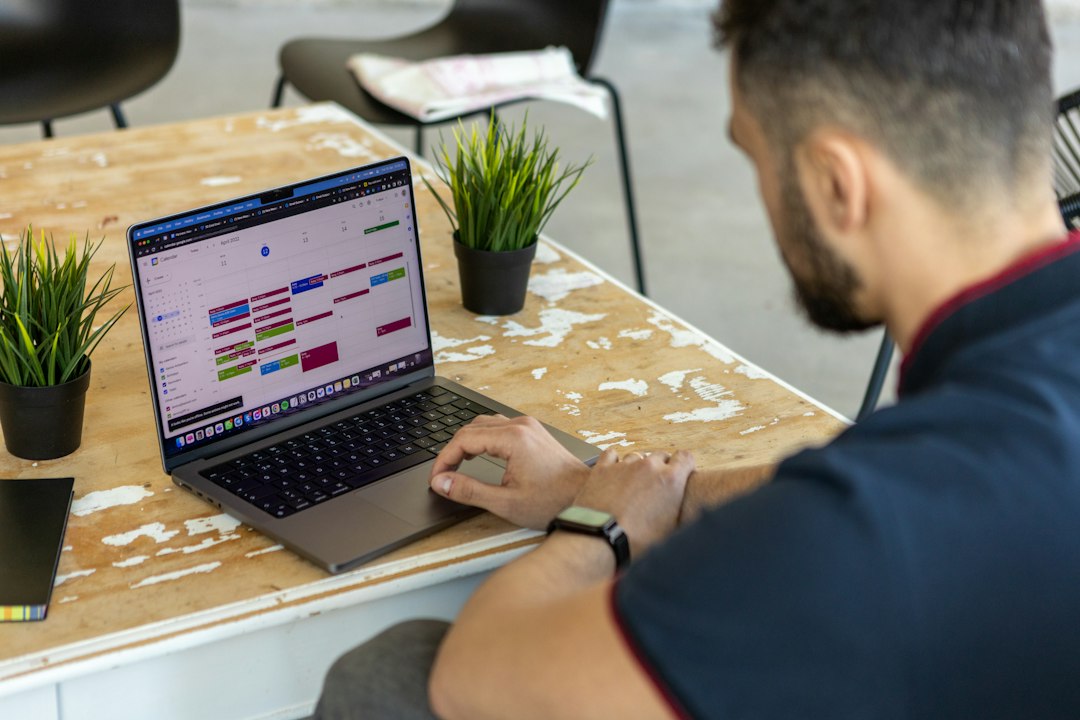
Color coding a calendar by hand works for about two weeks. Then a busy Monday arrives, twelve events get created in a hurry, and none of them are colored. A month later the calendar is half coded and half grey, which is worse than none of it being coded, because the eye now trusts a signal that is only sometimes there.
The fix is to stop treating color as a decoration applied after the fact and start treating it as a rule. A rule says: anything with more than three guests is Tomato, anything with the word interview in the title is Grape, anything on the personal account is Sage. Google Calendar itself has no rule engine. So the real question is which layer to put the rules in, and the answer depends on whether the calendar lives in a browser or in an app on the Mac.
The eleven colors you are working with
Before designing a scheme, it helps to know the palette is fixed and small.
Google Calendar separates calendar color from event color. A calendar has a color you pick when you create it, including a custom color. An individual event can override that with one of eleven named event colors. Those eleven are Lavender, Sage, Grape, Flamingo, Banana, Tangerine, Peacock, Graphite, Blueberry, Basil and Tomato. The Apps Script EventColor reference lists the same set against the numeric identifiers the API uses, which is the mapping any automation will need: Lavender is 1, Sage is 2, Grape is 3, and so on through Tomato at 11.
Eleven is fewer than it sounds once a scheme starts growing. Three of them are pale and read as background. Graphite reads as inactive. In practice a legible scheme uses four or five colors, and reserving one of them for the events you can cancel is worth more than assigning a color to every project.
There is also a display setting that changes how those colors land. Event color set and density lets you choose Modern, which draws white text on the color, or Classic, which draws black text, and pick between Responsive, Comfortable and Compact spacing. The same scheme can be readable in one combination and muddy in another, and both settings are only available in the browser on a computer. Fix those before blaming the palette.
What a color scheme is actually for
A scheme that encodes project or client is the usual instinct and the least useful outcome. The project is already in the title. Reading it costs nothing.
The schemes that earn their keep encode something the title does not say:
Whether it is negotiable. One color for commitments involving other people, another for blocks you set for yourself. When a request for time arrives, the answer becomes visible in one glance instead of requiring a read of six titles.
Whether it is yours. Events you created against events you were invited to. This is the single most informative split on a busy calendar, because the volume of the second category is the thing nobody tracks and everybody complains about.
Whether it needs preparation. A color for anything you have to do work before. This turns the week view into a warning system rather than a record.
Where you have to be. One color for anything that requires physically going somewhere. The clusters this reveals are the ones that produce impossible days, and it pairs directly with blocking the trips themselves.
Pick one axis. A calendar coded along two axes at once is a calendar nobody can read, including the person who designed it.
Labels, which are not colors but sit in the same control
Worth knowing about because they are hiding in the color picker and confuse people who find them.
On a work or school account, Google Calendar offers labels. Using labels to track calendar entries describes the flow: open an event, click Edit, select the current color next to the calendar name, then create or assign a label. Up to 200 labels are allowed. They feed the Time Insights panel, so labelled meetings roll up into a breakdown of where the week went.
Two limits matter. Labels require a work or school account and a computer, so they are absent for anyone on a personal Gmail account. And they are still assigned one event at a time by hand, which is the exact problem color coding by hand has. Labels are a reporting feature wearing a color picker's clothes. Useful if the goal is to measure meeting time. Not a substitute for a rule that colors events as they are created.
The three places rules can live
| Layer | Setup effort | Works on | Keeps working when |
|---|---|---|---|
| Google Apps Script with a trigger | An afternoon of code | Any account, from anywhere | The script runs and does not silently error |
| Browser extension | Minutes | The browser it is installed in | That browser and that profile are the ones in use |
| Calendar app on the Mac | Minutes | The Mac it runs on | The app is open, or it syncs on launch |
A script. Apps Script can read events, test titles, guest counts and calendars, and set the color. Installable triggers run the function on a schedule or on a calendar change, and they run under the account of whoever created them, which is worth remembering on a shared calendar. This is the most flexible option and the only one where the rules can be arbitrary. It is also the only one that can fail in silence. A trigger that stopped running three weeks ago looks exactly like a calendar nobody colored.
A browser extension. Fast to set up and the rules are visual rather than code. The constraint is scope: the coloring lives in the browser, so the same calendar seen from a phone or a desktop client may show none of it, depending on whether the extension writes the color back to Google or only paints the page. That distinction is the one question to ask before installing anything. Painting the page is cosmetic. Writing the color is real.
The calendar app. A desktop calendar that syncs the account can apply its own organisation and, if it writes colors through the Calendar API, have them appear everywhere. Google's colors carry over both ways when an app supports full read and write, which is why the feature list of a native Mac calendar is worth checking for color behaviour specifically rather than assuming sync means sync.
Writing rules that survive a real week
Three failure modes account for most abandoned schemes.
Rules keyed on words in titles. Matching the word review is fine until a client is called Review Media. Matching interview catches reinterview and also catches nothing when somebody types Intvw. Title matching is a reasonable first pass and a terrible only pass. Prefer structural signals where they exist: guest count, whether you are the organiser, which calendar the event sits on, whether there is a location, whether there is a meeting link.
Rules that fight manual overrides. If a script recolors everything on every run, a color you set by hand for a good reason disappears overnight. Decide the precedence explicitly. The usual answer is that the automation only colors events that are still on the default color, and leaves anything already overridden alone.
Rules applied to the past. Recoloring the last two years is satisfying for an afternoon and then costs API calls and risks touching events on calendars you share. Scope the automation to a forward window, usually the next sixty or ninety days, and let history stay as it is.
Rules with no upper bound on writes. Every color change is a write against the Calendar API, and a script that walks a year of events on every run burns quota for no benefit. Worse, a run that partially fails leaves the calendar in a half coded state, which is the condition the whole exercise was meant to escape. Log what the script changed and how many events it touched, even if the log is a row appended to a spreadsheet, so that a failing run looks different from a quiet week.
The other habit worth building: write the scheme down somewhere, in one line per color. Six months later the question is always what Banana meant, and a calendar whose legend exists only in someone's memory is a calendar that gets recoded from scratch.
A four color scheme that a rule can apply
A scheme only survives if every color can be decided by a rule rather than by judgement. The four below hold up because each one answers a question that comes up during the day, and each can be tested without reading a title.
Tomato for anything with an external attendee. Client calls, supplier reviews, interviews. These are the events that cannot move without a conversation, and seeing them first tells you the real shape of the week. The rule is structural: at least one guest outside your own domain.
Peacock for internal meetings you were invited to. Everything somebody else put on your calendar from inside the organisation. This is the pile that grows without anybody deciding it should. Watching the ratio of Peacock to everything else over a month is a more honest measure of workload than counting hours.
Sage for blocks you created for yourself. Writing time, preparation, focus blocks, the gym. Pale on purpose, because these are the ones you will move when something else lands, and the color should say so.
Graphite for logistics. Travel, buffers, the thirty minutes after a long call. Graphite recedes, which is correct: these are not achievements, they are the cost of the other events. Once they are visible and grey, the total amount of grey on a week becomes a number worth reacting to.
Everything else stays on the default calendar color. That is deliberate. A scheme where every event has an assigned color has no negative space, and the uncolored events are the ones the automation has not yet had an opinion about, which is useful information.
The rules behind these four are all checkable without reading a title: guest domain, organiser identity, presence of a location, and who created the event. That is what makes the scheme automatable in the first place, and it is why schemes built around project names tend to collapse.
What this does not fix
Color is a diagnostic, not a treatment. A well coded calendar makes it obvious that Tuesday has four meetings with no gaps and Thursday is entirely other people's invitations. It does nothing about either.
The two changes that follow from a good scheme are usually blocking the time between things that require travel, and setting a default event duration short enough that a booked hour is not actually an hour. Neither is a color. Both become obvious once the calendar stops being a uniform wall.
There is also a limit on what the browser will show regardless of color. Google's own help notes that the week and month views cannot display multiple calendars side by side, so a scheme that depends on visually separating two accounts is doing work the layout cannot support. That is a reason to look at a desktop client rather than a reason to add a twelfth color.
What to change first
Choose one axis, not four: negotiable against fixed, or yours against theirs. Assign four colors, write the legend in a note, and put the rules wherever they will keep running without being watched. If the calendar mostly gets used on a Mac rather than in a browser, comparing how desktop calendars handle colors and sets is the faster route than maintaining a script, and Caltimate carries Google's colors through in both directions.
Frequently asked questions
How many event colors does Google Calendar have?
Eleven named event colors: Lavender, Sage, Grape, Flamingo, Banana, Tangerine, Peacock, Graphite, Blueberry, Basil and Tomato. A calendar as a whole can use a custom color, but individual events are limited to those eleven, which is the constraint any automated scheme has to fit inside.
Can Google Calendar color events automatically without any add ons?
Not on its own. Google Calendar has no rule engine for event colors, so the color either comes from the calendar the event sits on or is set by hand. Automatic coloring requires Apps Script, an extension, or a calendar app that applies its own rules.
What is the difference between a label and an event color?
An event color is the visual color of the event and is available to everyone. A label is a separate tag on a work or school account that feeds the Time Insights reports, and it happens to be assigned from the same control as the color. Labels do not change how the event looks to other people.
Will colors set by a script show up on the phone?
Yes, if the script sets the event color through the Calendar API, because the color is stored on the event itself. A browser extension that only styles the page will not, since nothing is written back to Google. That distinction is the thing to confirm before committing to a tool.
How many colors should a scheme use?
Four or five. Eleven is the ceiling, not a target. Past about five the eye stops decoding and starts ignoring, and the calendar returns to being a wall of blocks with extra steps.