Putting Google Calendar on the Mac desktop
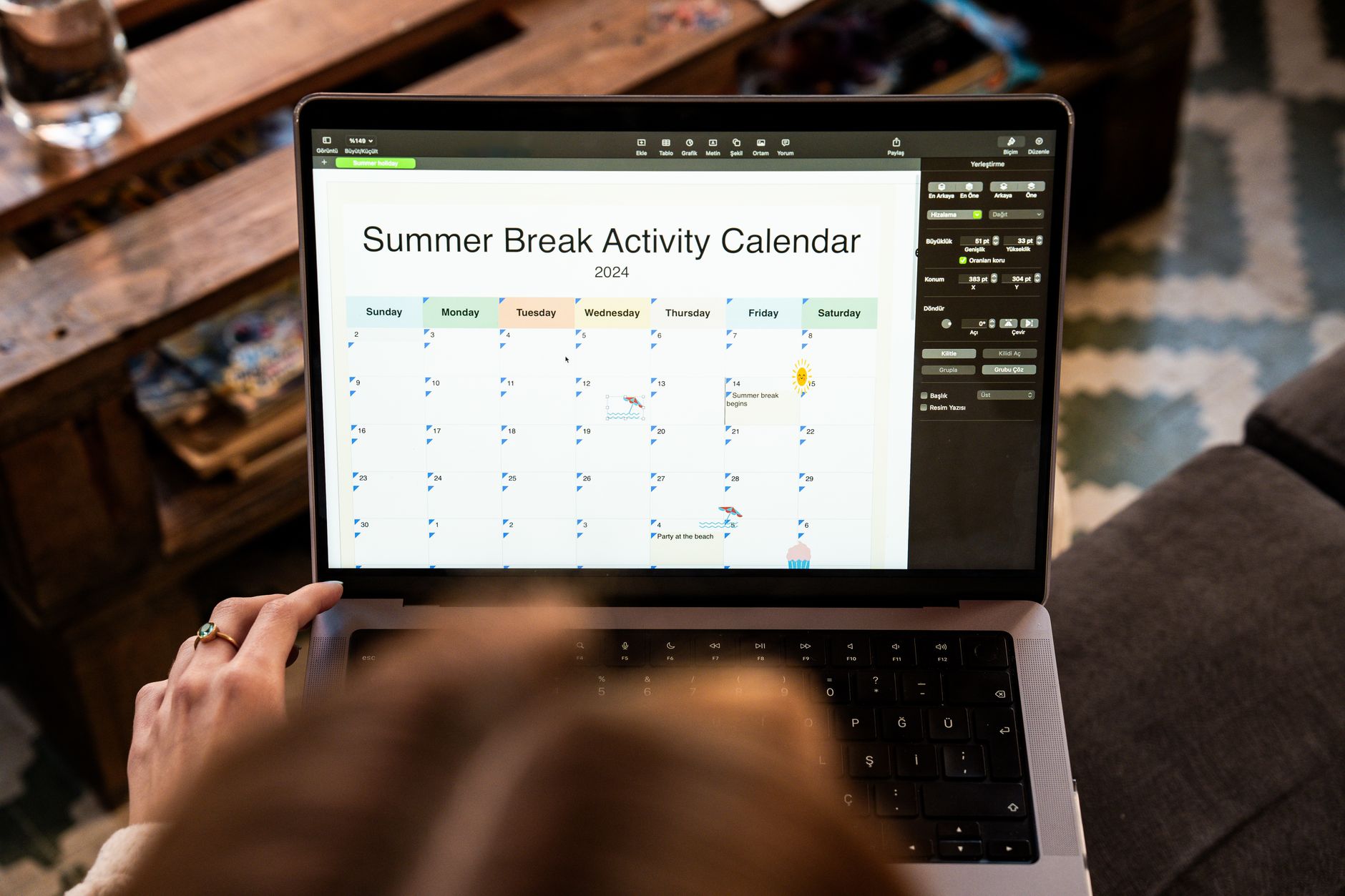
The short answer is that there is no official Google Calendar application to download for macOS, and Google says so plainly in its own help pages. Everything that looks like one is either a browser window dressed up as an app, or a different application that connects to the same Google account. Both work. They behave differently in ways that matter once notifications and offline access enter the picture.
What follows is what each route actually installs, what it can and cannot do when the browser is closed, and how to pick based on why the calendar needed to leave the browser tab in the first place.
What Google actually publishes
Google Calendar ships as a web application plus mobile apps for Android, iPhone, and iPad. There is no macOS or Windows client. The help documentation states it directly:
While you can't download and install Calendar on your computer, you can use it offline. Source: support.google.com
That sentence contains both halves of the situation. No installer exists, and yet the calendar does not strictly require a live connection either. Offline access is a browser capability, enabled in Google Calendar settings and supported in Chrome, which allows viewing and responding to events without a network. It is not the same as a native application, but it removes one of the common reasons for wanting one.
So the real question is not whether Google Calendar can go on the desktop. It is which of three arrangements to build, since each of them is a different trade.
Name why the browser tab stopped working
The phrase "on the desktop" covers at least four different complaints, and they have different answers. Sorting this out first prevents installing something that does not address the actual problem.
- The tab keeps getting lost among twenty other tabs, and finding it takes longer than reading it
- Notifications stop arriving because the browser was quit, or arrive from the wrong place
- The calendar is needed while offline, on a plane or a poor connection
- Only a glance is needed, meaning what is next, without opening anything at all
The first wants a separate window with its own icon. The second and third want the calendar to stop depending on a browser being open. The fourth does not want a calendar application at all: it wants a small permanent display. Three different destinations, and the wrong pick is what leads to reinstalling something else a week later.
Route one: install the page as a Chrome app
Chrome can turn a website into something that behaves like an application. It opens in its own window with no address bar, gets its own icon in the Dock and Launchpad, and can be switched to with the standard application switcher. The steps are documented in Chrome Help: open Google Calendar, then from the menu at the top right choose to install the page as an app.
What this genuinely fixes is the lost tab problem. The calendar stops competing with browsing, appears in the application switcher, and can be given a permanent position. Combined with offline access enabled in Google Calendar settings, it also covers reading the schedule without a connection.
What it does not change is the underlying engine. It remains Chrome, so it needs Chrome installed, it uses Chrome's notification permissions, and it inherits the behaviour of a web page for keyboard shortcuts and system integration. Quitting Chrome entirely can affect whether notifications still arrive, and that catches people out precisely on the days they closed everything to concentrate.
One detail makes this route considerably more useful. Google Calendar supports several view shortcuts, and an installed window can be left permanently on the view that gets checked most often, usually the week. Adding it to the login items so the window reopens after a restart removes the last bit of friction, since a calendar that has to be launched manually eventually stops being launched at all.
This route costs nothing, takes under a minute, and is reversible. For anyone whose complaint was purely the tab, it is the correct answer and the rest of this article is unnecessary.
Route two: connect the account to a real Mac calendar
The second route leaves the Google interface behind and connects the Google account to an application that runs natively on macOS. Apple Calendar does this through the Internet Accounts settings, and every third party Mac calendar does it through its own account setup. The events are the same events, because they still live in the Google account. Only the window changes.
The practical differences show up immediately. A native application launches at login and keeps working with the browser closed. Alerts come through macOS notifications rather than a web page, so they appear even during a video call or a full screen presentation. Offline behaviour is native: the events are stored locally, edits queue up, and everything reconciles when the connection returns. Keyboard shortcuts belong to macOS conventions rather than to a web page.
There are costs. The layout is no longer the Google layout, which takes a few days to stop being irritating. Some Google specific features, particularly on Workspace accounts, only exist inside Google's own interface. And each Google account has to be authorised separately, which is where the most common setup mistake lives.
Native apps also differ in what they add on top. Some estimate travel from an event's location and reserve the time on both sides, which is the difference between a day that survives contact with traffic and one that does not. That behaviour is described in Travel time, and how events get entered by sentence rather than by form is in Entering events.
Route three: a permanent display instead of an application
If the actual need is a glance, neither route above is the answer. What is next is a display problem, and macOS solves it two ways without any calendar application being open.
The first is the menu bar. A small utility placed in the top right corner shows the date and the next few events permanently, reading the calendars macOS already holds rather than connecting to Google separately. Nothing needs opening and nothing needs authorising a second time.
The second is a desktop or Notification Centre widget. macOS supports calendar widgets that sit on the desktop itself, showing the day or the month at whatever size is chosen. Since a Google account connected through system settings feeds the built in Calendar, the widget shows Google events without any additional software at all.
Both approaches are read only in practice. Creating and reshaping events still happens somewhere else. That is the trade, and for a glance it is the right one.
The three routes side by side
| Route | Own window and icon | Works with the browser closed | Offline | Creating events | Cost |
|---|---|---|---|---|---|
| Chrome installed app | Yes | Needs Chrome running | Yes, when offline access is enabled | Full Google interface | Free |
| Native Mac calendar | Yes | Yes | Yes, stored locally | Depends on the app, often faster | Free to paid |
| Menu bar or widget | No, always visible | Yes | Yes | Not really | Free |
The row that decides most cases is the third column combined with notifications. Anyone who quits the browser during focused work should not rely on a browser based calendar for alerts. Anyone who lives in the browser all day loses very little by staying there.
What a native app cannot show
Moving to a native calendar keeps every event, because events belong to the Google account rather than to any application. A few Google specific things do not travel, and it is better to know which before the switch rather than during a meeting.
Room booking on a Workspace account is the clearest example. Reserving a meeting room, seeing which rooms are free, and releasing a room when a meeting is cancelled are behaviours built into Google's own interface, and third party applications support them unevenly. Out of office events, working location, and appointment schedule pages are in the same category: created and managed on the web, sometimes visible elsewhere as ordinary events, sometimes not visible at all.
Administrative policy is worth checking too. A Workspace administrator can restrict which third party applications are allowed to connect to accounts in the organisation, so a connection that works for a personal account may be refused for a work one. The failure looks like a sign in loop rather than a clear message, which sends people hunting for a bug that does not exist.
The practical arrangement for anyone in this position is not one route or the other. It is a native calendar for daily use, alerts, and travel, with the Google web interface kept for the handful of Workspace specific tasks. That combination costs nothing extra and avoids the two week experiment that ends in going back.
Notifications come from wherever the calendar lives
Notification confusion is the most common complaint after any of these changes, and it comes from having two sources at once. A browser tab, an installed Chrome app, a native calendar, and a phone can all announce the same event, which produces either four alerts or none.
Three rules keep this tidy. Decide on one source on the Mac and turn the others off, since Google Calendar's web notifications and a native app's alerts are configured in completely different places. Check macOS notification settings after installing anything, because a new application arrives with permissions that may be off by default and silence is easy to mistake for a working setup. And confirm that alert timings carried across, since default reminder settings are stored per application rather than per account and often reset to something different.
Multiple Google accounts need multiple authorisations
Anyone with a work account and a personal account should verify both after any of these routes. Each Google account requires its own sign in and its own consent screen, and connecting one while assuming the other followed is the standard way to miss a meeting.
The check takes a minute. Open the account list in whichever route was chosen, confirm every account is listed and enabled, then look at a day that is known to contain events from both. Colour assignment matters here too. Two accounts sharing a colour is functionally the same as having one account, since the point of seeing them together is telling them apart. Which calendars sync and which are merely visible is worth confirming as well, because a calendar that is subscribed but not selected simply will not appear.
What to change first
If the tab keeps getting lost, install Google Calendar as a Chrome app today and stop there. If notifications need to survive the browser being quit, or the week keeps breaking because travel is never reserved, connect the same Google account to a native Mac calendar such as Caltimate and compare a week of alerts and surviving work blocks before deciding.
Frequently asked questions
Is there an official Google Calendar app for Mac?
No. Google publishes Google Calendar as a web application plus Android and iOS apps, and its help documentation states that Calendar cannot be downloaded and installed on a computer. Desktop access comes either from a browser window installed as an app, or from a separate calendar application connected to the Google account.
Does Google Calendar work offline on a Mac?
Yes, with limits. Offline access is enabled in Google Calendar settings and supported in Chrome, allowing the schedule to be viewed and events to be answered without a connection. A native Mac calendar connected to the same account stores events locally by default, which makes offline use less of a configuration step.
Will notifications still arrive if Chrome is closed?
Not reliably. A calendar running inside Chrome depends on Chrome being open and on Chrome's notification permissions. A native Mac calendar launches at login and posts alerts through macOS itself, so notifications continue when every browser window is closed.
Can two Google accounts be shown on the desktop at once?
Yes, in every route described here, but each account has to be authorised separately. After connecting, verify that both accounts appear in the account list, that the specific calendars are selected rather than merely subscribed, and that the two accounts use different colours so the combined view remains readable.