iPhone and Mac calendar sync: nothing travels between them
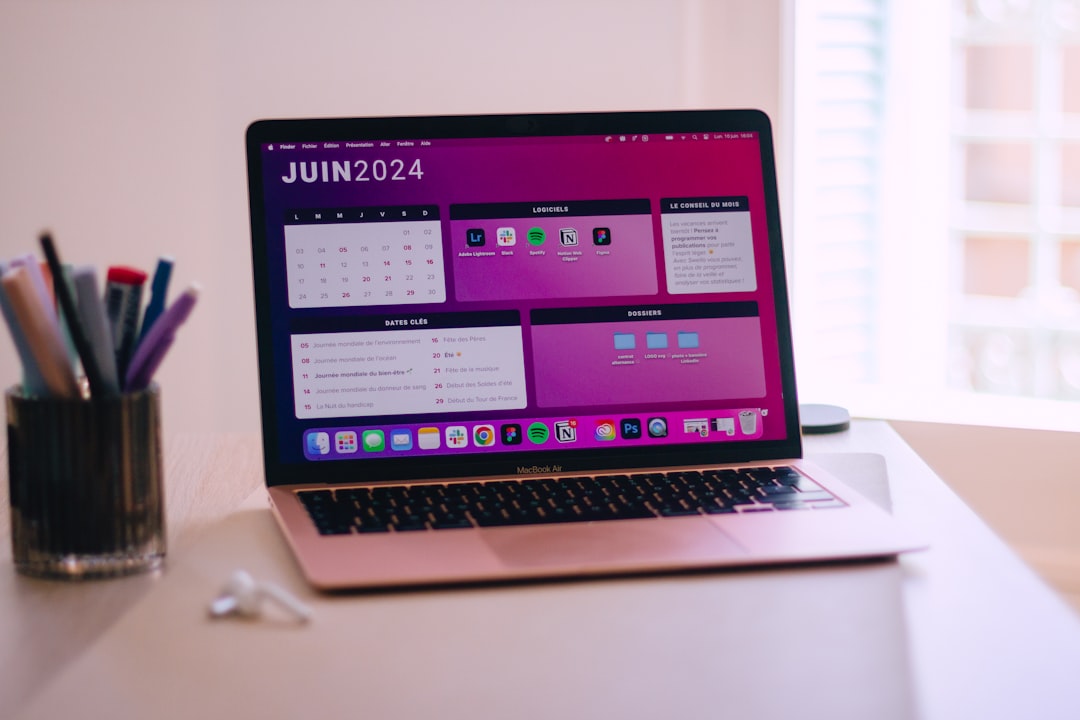
An event added on the iPhone does not show up on the Mac, or the other way round. The fix is almost always one of three things: the two devices are not signed in to the same account, the calendar switch is off in iCloud settings on one of them, or the event went into a calendar that does not sync at all. The iPhone and the Mac never talk to each other directly. Each one writes to an account, usually iCloud or Google, and reads back from it. Once that model is clear, the troubleshooting order follows.
This guide uses the exact setting names from Apple's current support pages, checked on October 18, 2026, so the steps match the screens on recent versions of iOS and macOS.
Sync runs through an account, not between devices
Think of the account as a shared folder on a server. The iPhone puts events in. The Mac takes them out. If the iPhone puts an event in a folder the Mac never opens, the Mac has nothing to show, and no amount of restarting either device changes that.
That leads to three possible places for an event to live:
| Where the event is stored | Reaches the other device? | Typical cause |
|---|---|---|
| An iCloud calendar | Yes, if both devices use the same Apple Account with Calendars on | The intended setup |
| A Google or Exchange calendar | Yes, if the same account is added on both devices | Work or personal Google account |
| A calendar stored only on the device | No | Created before iCloud was switched on, or with iCloud Calendars off |
Apple's troubleshooting page for iCloud Contacts, Calendars, or Reminders that won't sync names the local option on the Mac as "On My Mac," alongside Exchange and Google, when it explains that only events stored in iCloud are updated by iCloud. A calendar under that heading stays on that one Mac.
So the first question is not "why is sync broken" but "which account is this event in." On the iPhone, open Calendar and tap the Calendars tab; the list is grouped by account. On the Mac, choose View, then Show Calendar List, and look at the headings in the sidebar. If the missing event sits under a heading that does not exist on the other device, the cause is found.
Turn on iCloud Calendars on both devices
If both devices should share iCloud calendars, the switch has to be on in two places. Apple's guide to setting up iCloud for Calendar on all your devices gives the paths by version.
On the iPhone
- Open Settings, tap your name, then tap iCloud.
- On iOS 17 or later: tap See All (or Show All), tap iCloud Calendar, then turn on "Use on this iPhone."
- On iOS 16: tap Show All, then turn on Calendars.
On the Mac
- Open System Settings from the Apple menu and click your name at the top of the sidebar. If the name is missing, click Sign in.
- Click iCloud.
- On macOS 15 or later: next to Saved to iCloud, click See All, then turn on Calendars.
- On macOS 13.3 to 14: below Apps Using iCloud, click Show All or Show More Apps, then turn on Calendars.
The same guide states the condition plainly: every device must be signed in to the same Apple Account. A device that is not signed in, or that has Calendars turned off, cannot reach iCloud calendars. This sounds obvious, but households often share a Mac signed in to one family member's Apple Account while each person's iPhone uses their own. In that case the devices are working correctly. They are simply looking at different accounts.
After switching on, check that the iCloud calendars are actually selected for display. On the iPhone, tap Calendars at the bottom of the Calendar app and tick the calendars in the iCloud section. On the Mac, choose View, then Show Calendar List, and tick them there. A calendar that syncs but is hidden looks exactly like a calendar that does not sync.
The default calendar decides where new events go
The second common cause is quieter. Both devices are signed in correctly, iCloud is on, and still some events appear on only one side. Usually this means the iPhone and the Mac have different default calendars, so new events land in different places.
Apple's page on changing Calendar settings on iPhone explains that when there are several calendars, new events are added to the default one automatically. The path is Settings, then Apps, then Calendar, then Default Calendar. On iOS 17 or earlier, it is Settings, then Calendar.
On the Mac, the Apple troubleshooting page gives the matching steps: open Calendar, choose Calendar, then Settings, and in the General tab make sure one of the iCloud calendars is the default.
Here is how the split happens in practice. The iPhone's default is an iCloud calendar called Home. The Mac's default is a Google work calendar, because the Google account was added first. Events typed on the phone go to iCloud, events typed on the Mac go to Google, and if the phone does not have the Google account added, half the week is missing from it.
Two fixes are possible, and either works:
- Set both devices to the same default calendar.
- Add the same accounts on both devices, so every calendar is visible everywhere regardless of where an event lands.
Apple's iPhone guide also notes that an event can be moved to a different calendar after it is created. Moving the stray events once, then fixing the default, cleans up the history.
Google and Exchange accounts on the iPhone and Mac
Many people do not use iCloud calendars at all. Their events live in a Google account, sometimes also an Exchange account from work. Sync still runs through the account, but the account has to be added on each device separately.
On the iPhone, Apple's settings guide gives the path: Settings, then Apps, then Calendar, then Calendar Accounts, then Add Account. Pick iCloud, Microsoft Exchange, or Google and sign in. On the Mac, the matching step is in the Calendar app, under Calendar, then Add Account.
Two Google-specific limits are worth knowing. Google's help page on adding Google Calendar events to Apple Calendar states that calendars listed under "My calendars" sync automatically, while other calendars, such as ones shared by colleagues, have to be switched on from Google's calendar sync settings page. The same page lists features Apple Calendar cannot use with Google: event email notifications, creating new Google calendars, and the room scheduler. If a shared work calendar appears in the Google web interface but not on either Apple device, the sync settings page is the place to check, not the iPhone.
The Google help page also mentions a "Refresh Calendars" setting on the Accounts tab of Apple Calendar on the Mac, which controls how often the Mac checks Google for changes. If changes from the phone take a long time to reach the Mac, a long interval here is a likely cause.
When the account does not push changes
Apple's iPhone guide adds one more detail. If an account does not support push, changes are collected on a fetch schedule instead, set under Settings, then Apps, then Calendar, then Calendar Accounts, then Fetch New Data. If the schedule is Automatically, the guide says new data is downloaded when the iPhone is charging and connected to Wi-Fi. That can make a phone look hours behind during the day, then catch up overnight.
Refresh steps that actually force an update
When the accounts and defaults are right but a recent change is still missing, Apple's troubleshooting page lists specific refresh steps. They are more targeted than restarting the device.
On the iPhone
- Open Calendar, tap the Calendars tab, and swipe down on the list to refresh.
- If that does not help, go to Settings, then Apps, then Calendar, then Sync. If All Events is selected, choose a shorter timeframe such as Events 1 Month Back. If a timeframe is selected, choose All Events instead. Return to the Home Screen, wait a few minutes, then open Calendar and refresh again.
The second step works because changing the sync range makes the phone fetch its events again. It is a gentler alternative to signing out of iCloud.
On the Mac
- Open Calendar, then choose View, then Refresh Calendars.
Things to check before any of this
The same Apple page lists checks to make first: the iCloud system status for outages, the latest version of iOS or macOS, the same Apple Account on all devices with Calendars turned on, and correct date and time settings for the current location. A Mac with the wrong time zone can show events at the wrong hour, which looks like a sync problem but is not.
One small detail from the page explains a frequent false alarm. The iCloud Birthdays calendar updates hourly on the Mac and daily on the iPhone, so a birthday added to a contact may not appear for a while. That delay is by design.
Signing out is the last step, not the first
When an event is missing, the instinct is to sign out of iCloud and back in, or remove and re-add the Google account. This is the slowest place to start and carries a real risk. If the missing events exist on only one device, that device may hold the only copy. Signing out of the account or switching its calendars off on that device puts the only copy at stake before anyone has checked where it lives.
A safer order:
- Find which account the event is in, on both devices.
- Check that the same account is signed in and Calendars is on, on both devices.
- Compare the default calendars.
- Refresh using the steps above.
- Only then sign out and in, and only on the device that is missing events, never on the device that has the only copy.
If the events are in a calendar stored on one device only, move them into an iCloud or Google calendar first. Apple's iPhone guide confirms that an event can be moved to a different calendar after it is created, so this does not require retyping anything.
When the problem is no longer sync
Sometimes everything above checks out and the week still feels scattered. Events are syncing, but they are spread across an iCloud family calendar, a personal Google account, and a work Google account, and each device shows a slightly different subset. That is less a sync problem than a question of how many accounts are in play and where new events should go.
A desktop calendar for Mac that connects several Google accounts directly, and can also show the calendars already set up in Apple's Calendar app, is one way to see everything in one window and choose which account receives new events. The guide shows how accounts are connected, and the FAQ covers where data is stored and which macOS versions are supported.
What to change first
Open the calendar list on both devices and find which account the missing event belongs to, then set the same default calendar on the iPhone and the Mac. Those two checks resolve most cases without signing out of anything. If several Google accounts are part of the picture, Caltimate is one desktop option to try alongside Apple Calendar.
Frequently asked questions
Why do events created on the iPhone not appear on the Mac?
The usual causes are a different Apple Account on each device, iCloud Calendars turned off on one of them, or the event being saved to a calendar the Mac does not have. Check the calendar list on both devices to see which account the event is in, then compare the default calendars in Settings on the iPhone and in Calendar settings on the Mac.
Do the iPhone and Mac need to be on the same Wi-Fi network to sync calendars?
No. Calendar sync goes through an online account such as iCloud or Google, not a direct link between devices. Each device only needs an internet connection. Apple notes that accounts without push update on a fetch schedule, and the Automatically option downloads new data when the iPhone is charging and on Wi-Fi.
How can a calendar refresh be forced without signing out?
On the iPhone, open Calendar, tap the Calendars tab, and swipe down. If that is not enough, change the Sync range under Settings, Apps, Calendar, then switch it back. On the Mac, choose View, then Refresh Calendars. Signing out should be a last step, because events stored only on one device can be lost.
Why does a shared Google calendar show on the web but not on the iPhone or Mac?
Google syncs only calendars under My calendars to Apple devices automatically. Calendars shared by other people need to be switched on in Google's calendar sync settings page. After saving the change there, refresh the calendar on each Apple device.