Is there a proper calendar widget for the Mac
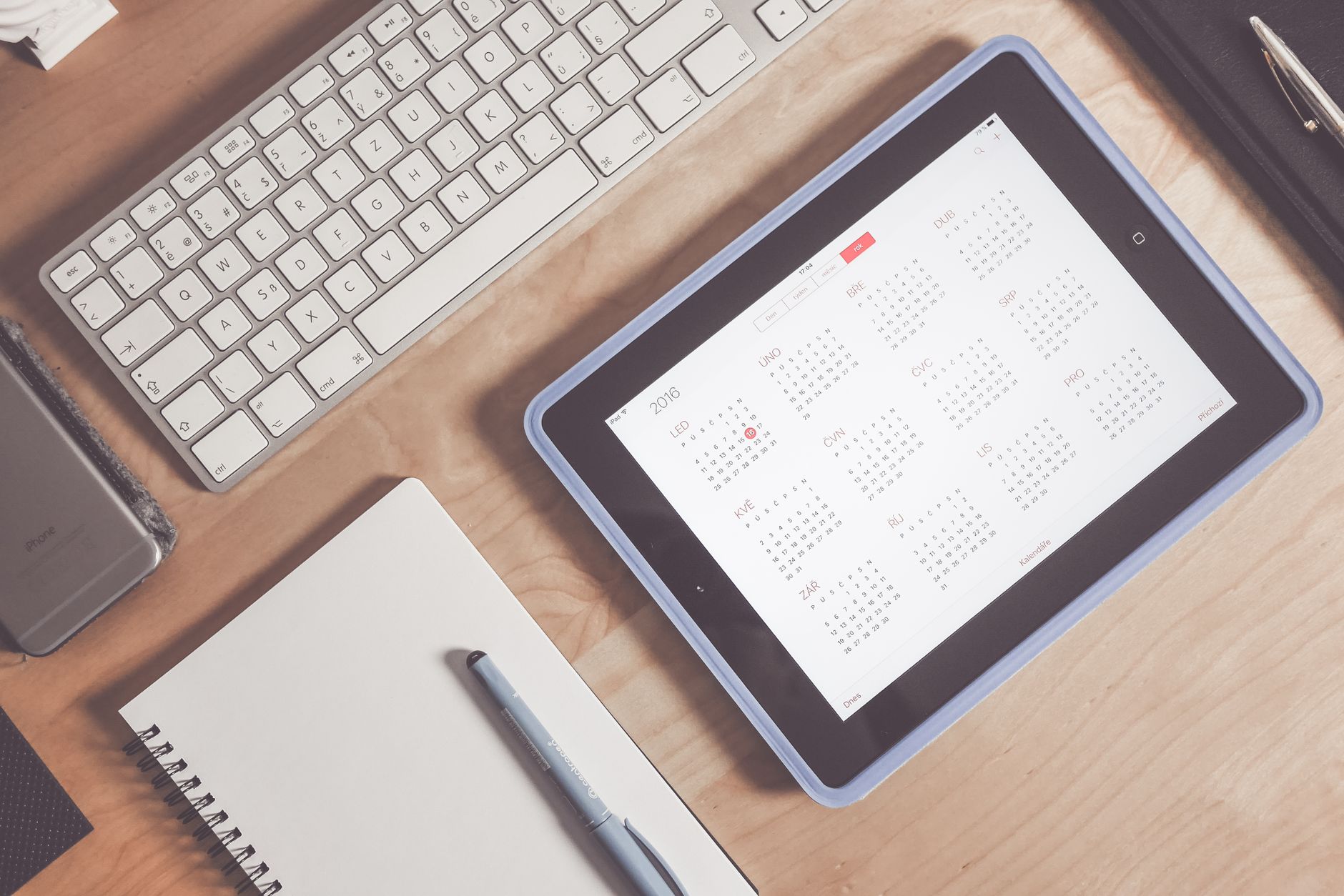
The short answer is yes, and it has been yes since macOS Big Sur put widgets in Notification Center. The longer answer is that the word widget covers at least three different things on a Mac, they live in different places, and the one people picture when they type this search is often not the one they end up using. Anyone asking the question usually wants the same outcome: see what is next without stopping what they are doing. That outcome has more than one route.
Three things called a widget
Sorting these out first saves a lot of dragging things around.
A Notification Center widget sits in the panel that slides out when the date and time in the menu bar are clicked, or when two fingers swipe in from the right edge of a trackpad. This is the original kind. It is always one gesture away, no matter how many windows are open.
A desktop widget sits on the wallpaper. macOS Sonoma introduced these, and they use the same widget gallery as Notification Center. They look better and they are invisible whenever a window covers them, which is most of the working day for most people.
A menu bar item is not technically a widget at all. It is a small app that draws into the menu bar, so it is visible at all times without any gesture. Apple does not ship a calendar one, but several third party apps do exactly this.
The three differ mainly in how much of the screen they take and how much effort a glance costs. That second number is the one that decides whether a calendar actually gets looked at. A view that requires finding a window, switching spaces, or leaving full screen tends to get skipped exactly when the day is busy enough to need it. Nothing about the three is exclusive either, and running a menu bar item alongside a Notification Center widget is a normal setup rather than a redundancy.
| Desktop widget | Notification Center widget | Menu bar item | |
|---|---|---|---|
| Visible while working | Only when the desktop is showing | After one click or swipe | Always |
| Size available | Small, medium, large | Small, medium, large | A few characters plus a dropdown panel |
| Interactive | Limited buttons and toggles | Limited buttons and toggles | Depends on the app |
| Ships with macOS | Yes, Calendar widget | Yes, Calendar widget | No |
| Best for | A clear desktop between tasks | A deliberate check between meetings | Constant awareness of the next thing |
Adding the built in Calendar widget
Apple's own guide opens with the point of the feature: "On your Mac, add widgets to the desktop or Notification Center so you can keep tabs on your schedule, favorite devices, the weather, top headlines, and more."
For the desktop, control click the wallpaper and choose Edit Widgets. A gallery opens with a source list on the left. Select Calendar, then drag the size that suits onto the wallpaper, or click it to have macOS place it automatically. Widgets can be dragged around afterwards and they snap to an invisible grid.
For Notification Center, click the date and time in the menu bar, scroll to the bottom of the panel, and click Edit Widgets. The same gallery appears. Widgets added here stack in a single column.
The Calendar widget comes in more than one shape. The smallest is close to a date tile with the next item under it. The larger sizes give a list of upcoming events with times, and the largest can show a portion of the day laid out. Which one is worth the space depends on whether the question being asked is what is next or what does the rest of the day look like. Both variants can be placed at once, since nothing stops the same app supplying two widgets.
Apple's guide and the widget gallery are the whole story here. There is no hidden preference that unlocks a denser calendar widget.
iPhone widgets on the Mac
Since macOS Sonoma, widgets from apps that are only installed on an iPhone can appear on a Mac. Apple lists the requirement plainly: "Your iPhone uses iOS 17 or later." The iPhone also has to be signed into the same Apple Account and be nearby with Wi-Fi and Bluetooth switched on.
Turn it on in System Settings, under Desktop & Dock, in the Widgets section, using the option to use iPhone widgets. Those widgets then appear in the same gallery as the Mac ones, marked as coming from the phone.
This matters for calendars because a person's calendar app on the phone is often not the same as the one on the Mac. The phone widget makes it possible to see the phone app's view on the desktop without buying or installing a second copy. It also has a real limitation: clicking such a widget opens the app on the iPhone, not on the Mac, since the app is not installed there. For checking, that is fine. For acting on what was seen, it is a dead end.
The reason desktop widgets disappoint people
A widget on the wallpaper is only useful when the wallpaper is visible. On a Mac being used for work, it almost never is. Full screen apps hide it completely, and even a single browser window covers the corner where it usually sits.
Two settings soften this. In System Settings, under Desktop & Dock, there is a control for whether clicking the wallpaper moves windows aside to reveal the desktop. On macOS Sequoia and later this defaults to acting only in Stage Manager, so on a normal setup it needs turning on before a single click will expose the widgets. The other is the pop-up menu described in Apple's guide as follows: "Click the 'Dim widgets on desktop' pop-up menu, then choose an option." Widgets can be left in full colour, forced to monochrome so they recede into the wallpaper, or left to switch automatically when another app is in front. Monochrome looks calmer and is markedly harder to read at a glance, which defeats the purpose for a calendar.
There is also a refresh question. Widgets do not update continuously. macOS gives each widget a budget of updates over the day, and a widget that has been off screen for a while can show a slightly stale view for a moment after it reappears. For a calendar checked a few times a day this never matters. For someone relying on a widget to notice that a meeting moved fifteen minutes earlier, it does.
What a calendar widget cannot do
Widgets became interactive in macOS Sonoma, so buttons and checkboxes work without launching the app. That is genuinely useful for a reminders list. It does very little for a calendar, because the two things people most want to do with a calendar are both too large to fit in a widget.
The first is entering an event. A widget has no text field. Every calendar widget on the Mac routes a click through to the app, which means the fast path for creating something is a keyboard shortcut, a menu bar panel, or a quick entry window rather than anything on the wallpaper. How an app handles typed or spoken input is the thing that decides whether events actually get recorded, and it is worth reading about entering events separately from anything to do with widgets.
The second is judging whether the day fits. A list of times says a call ends at two and another starts at half past. It does not say the second one is across the city. Travel between commitments is the most common reason a day that looks fine on a widget falls apart in practice, and a calendar that treats travel time as a real block is answering a question that no widget can answer.
Neither of these is a criticism of widgets. A widget is a display surface. Expecting it to fix scheduling is like expecting a clock to make someone punctual.
Check what is actually being missed first
A widget is a fix for one specific failure: knowing the schedule exists but not looking at it often enough. Several other failures look identical from the outside and do not respond to widgets at all. Ruling them out takes a few minutes and saves a pointless round of app shopping.
The first is that the calendar was never added to the Mac. Plenty of people run a work calendar entirely in a browser tab and have nothing configured under Internet Accounts in System Settings. In that state the built in Calendar widget shows an empty day and looks broken. Adding the account fixes it, and no widget was needed.
The second is notifications. Alerts are granted per app, and a Mac that was set up quickly, or restored from a backup, often has calendar notifications switched off or set to show without a banner. Someone in that position is missing meetings because nothing announces them, and a silent widget on the wallpaper does not solve that. Check the alert settings for the calendar app in System Settings under Notifications, and check the default alert times inside the calendar app itself, since those are separate controls.
The third is that the events themselves are not being entered. A widget that shows two events on a day with six commitments is accurate and useless. This is the most common of the three, and it is the one people are least likely to name, because it feels like a discipline problem rather than a tool problem. It usually is not. It is a friction problem, and the friction is in the seconds between hearing a time and having somewhere to put it.
If any of those three apply, fix that first. The widget question can wait, and may answer itself.
Third party calendar widgets
Any Mac calendar app can supply its own widgets, and most of the well known ones do. They appear in the same gallery once the app is installed, listed under the app's name.
Two things are worth checking before deciding a third party widget is the answer. Whether the app actually ships a widget, since a few otherwise capable calendars still do not, and whether its widget shows the accounts that matter. An app that keeps its own copy of Google calendar data will show that copy, which is usually what is wanted. An app that reads the shared macOS calendar database will show everything configured in System Settings under Internet Accounts, including calendars that were meant to stay hidden. Widget content follows the app, not the system.
Beyond that, the differences between widgets from different vendors are smaller than the differences between the apps behind them. Comparing how other Mac calendars work is a better use of an evening than comparing their widget screenshots.
What to set up first
Add the built in Calendar widget to Notification Center rather than the desktop, because it is available with one swipe regardless of what is on screen. Give the desktop version a week only if the wallpaper is genuinely visible during the working day. Then judge the calendar itself on entry speed and on whether it accounts for travel, which is where Caltimate puts its weight, since a widget can only ever display a schedule that something else built well.
Frequently asked questions
Does macOS come with a calendar widget, or is a third party app needed?
macOS ships a Calendar widget in several sizes, available from the widget gallery for both the desktop and Notification Center. No purchase or installation is required. Third party calendar apps add their own widgets to the same gallery once installed, which is worth doing only if their view of events differs from the built in one.
Why do the desktop widgets vanish as soon as an app is opened?
Desktop widgets sit on the wallpaper, so any window in front of them hides them. On macOS Sequoia and later, clicking the wallpaper to push windows aside is switched off outside Stage Manager by default, which makes them feel gone entirely. Turning that on in Desktop & Dock, or using Notification Center instead, restores one gesture access.
Can a widget from an iPhone calendar app be used on the Mac?
Yes, with an iPhone running iOS 17 or later, signed into the same Apple Account, nearby, and with Wi-Fi and Bluetooth on. Enable it under Desktop & Dock in the Widgets section. The catch is that clicking such a widget opens the app on the phone rather than on the Mac, so it works for checking but not for editing.
Is a menu bar calendar better than a widget?
They answer different questions. A menu bar item is visible at all times, which suits someone who needs constant awareness of the next commitment, while a widget gives a larger view for a deliberate check. Apple does not ship a menu bar calendar, so this route requires a third party app. Running both is common and costs nothing but screen space.