Seeing your day without leaving the menu bar
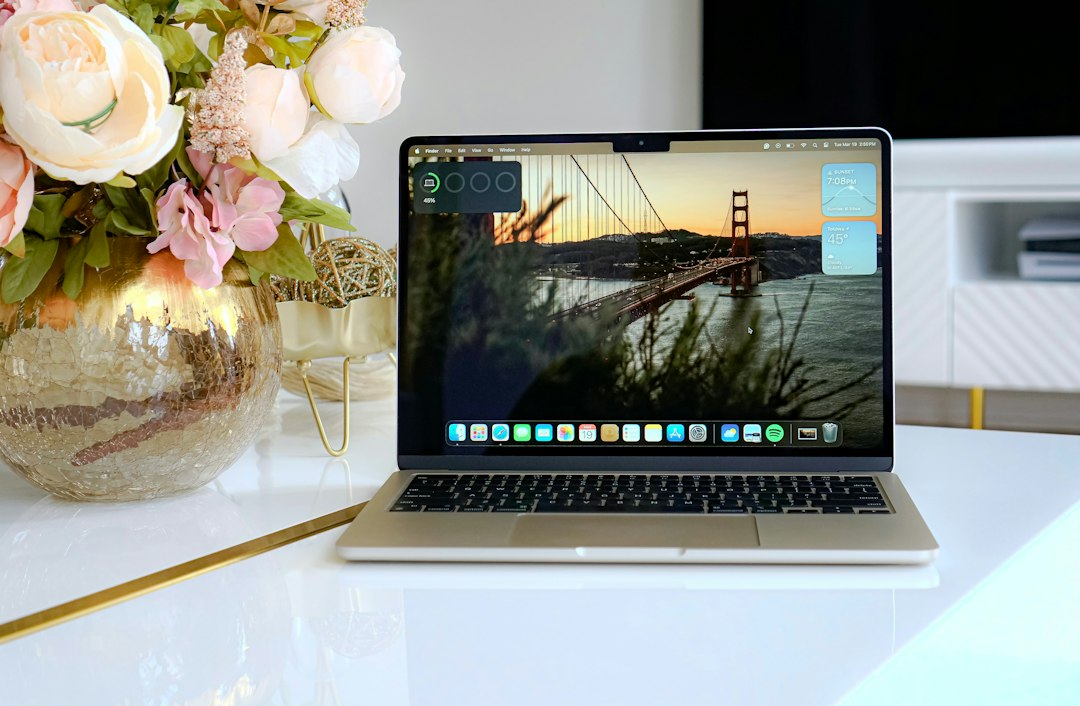
The macOS menu bar shows a clock and, depending on the format chosen, a date. It does not show what is happening in twenty minutes. Answering that question means switching to a calendar application, reading it, and switching back, which is cheap once and expensive forty times a day.
A menu bar calendar closes that gap. The category is crowded, the applications look nearly identical in screenshots, and they differ enormously in one respect that screenshots hide: whether they show your events at all, and if so, where those events came from.
What "seeing your day" actually requires
Strip away the design and there are four distinct things a person wants from the top of the screen, and almost no application does all four.
The first is the date. Just the number, because the menu bar clock often omits it and a month grid is the fastest way to answer what day of the week the 14th falls on.
The second is the next event with the time remaining before it. This is the single most useful item, because it converts a schedule into a countdown, and a countdown is what prevents a missed call.
The third is the rest of the day as a list, so that a glance answers whether the afternoon is free without committing to opening anything.
The fourth is an action, usually joining a video call from the popover rather than hunting for the link inside the invitation.
Applications that cover one and two are common. Applications that cover all four start to look like calendar applications that happen to live in the menu bar, and they cost money.
Some menu bar calendars show no events at all, and mean it
This catches people, and it is not a bug. Menu Bar Calendar by Sindre Sorhus states on its own page that it does not show calendar events, and that this is outside the scope of the app, pointing instead at the same developer's Dato for that capability. It is free on the Mac App Store, listed for macOS 26, and it is a month grid one click away. Clicking a date opens that date in either the Calendar app or Google Calendar, which is genuinely useful, but the popover itself is dateless in the sense that matters here.
Anyone who installs it expecting Itsycal's behaviour spends an evening checking calendar permissions that were never involved. Reading the scope statement first saves that evening.
The lesson generalises. Before installing any menu bar calendar, find the sentence on its own page that says whether events are displayed. It is usually there, and it is usually skipped.
Where the events come from, and why it decides everything
Menu bar calendars split into two architectures, and the split determines what you will see.
The first group reads through the Calendar app that ships with macOS. Itsycal names integration with the Mac Calendar app as its data path. Whatever macOS is syncing, these applications display; whatever it is not syncing, they cannot reach.
That architecture inherits a documented gotcha. Google's help on adding Google Calendar events to Apple Calendar states that only the calendars under My Calendars sync automatically, along with Birthdays, and that calendars shared by other people and subscribed calendars must be ticked on Google's Calendar sync page and saved before they appear. A missing team calendar in a menu bar popover is nearly always this, one layer down.
The second group holds its own account connections. Notion Calendar is built around Google Calendar directly, and full calendar applications such as Fantastical and BusyCal connect to accounts themselves and offer a menu bar component on top. These are not subject to the sync page detour, and they keep working with the Calendar app closed.
Alerts belong to the first architecture's parent, not to the menu bar application. Event notifications from an application that reads the Calendar app are produced by macOS and Calendar, so muting Calendar's notifications silences reminders while the popover keeps showing a full day. That combination, a correct-looking list and total silence, is the most confusing failure in the category.
The options, by what they put in front of you
Prices and requirements below are from each publisher's own listing, checked on 2026-09-21.
| Application | Price | Requirement | What the popover shows |
|---|---|---|---|
| Itsycal | Free, MIT licensed, from mowglii.com | macOS 11 or later | Month grid plus events, ISO week numbers, joins virtual meetings |
| Menu Bar Calendar | Free on the Mac App Store | macOS 26 | Month grid only, events out of scope by design |
| Dato | 18.00 USD on the Mac App Store | macOS 26 | Month grid plus events, by the same developer |
| Calendr | Free, MIT licensed, on GitHub | Published for macOS | Month grid plus events, typed event entry, extra time zones in the bar |
| MeetingBar | Free on the Mac App Store | macOS 12.0 or later | Next meeting and its join link, rather than a calendar |
| BusyCal | 49.99 USD one time, 14 day trial | macOS 12.0 or later | Menu bar extension with an availability heat map and an event list |
| Fantastical | Free to download, Premium at 6.99 USD per month or 56.99 USD per year | macOS 12.4 or later | Full calendar with a menu bar view |
Calendr deserves a note for a feature rarely found at its price, which is zero. Its documentation describes typed event entry, where a line such as a title followed by a day, a time range, and a calendar name is parsed into a real event, with the recognised instructions highlighted as you type and stripped from the saved title. It also documents showing additional time zones in the menu bar itself. Both are things people usually pay for.
MeetingBar is in the table because it answers a different question. It is not trying to be a calendar; it puts the next meeting and its join link in the bar. For someone whose day is back to back video calls, that is the whole requirement.
The bar itself is a second decision
The popover gets all the attention, but the string sitting permanently in the menu bar is the part you look at hundreds of times a day, and it is configurable in ways people rarely explore.
Itsycal can replace the system clock with its own configurable display. Used properly that means turning off the built-in clock in System Settings, under Control Centre, so one item shows the date and time instead of two items showing overlapping information. Used improperly it means the time appears twice and the bar gets shorter for no benefit.
Calendr documents putting additional time zones in the menu bar, which is an unusual capability at any price and a decisive one for anyone working with a team several hours away. Reading a colleague's local time without arithmetic removes an entire class of scheduling mistake.
The trade in both cases is width. Menu bar items are laid out from the right, and on a MacBook with a notch the usable run is shorter than the display, so a verbose date format pushes something else out of sight without warning. A compact format is worth choosing deliberately rather than accepting the default and later concluding the bar is too crowded.
Installing the ones that are not in the App Store
Two of the strongest free options, Itsycal and Calendr, are not distributed through the Mac App Store. Itsycal comes as a download from mowglii.com and is also carried by Homebrew as the cask itsycal, currently at version 0.15.14. Calendr is published through GitHub releases and its own Homebrew tap.
Distribution outside the App Store has two consequences worth knowing before deciding. Updates arrive through the application's own mechanism rather than through the App Store, which is why Itsycal's own page notes that it uses Sparkle internally. And on a managed Mac where only App Store installations are permitted, neither is an option regardless of how well they work, which narrows the free field to Menu Bar Calendar and MeetingBar.
There is also a permission step that applies to every option that displays events. A menu bar calendar has to be granted access to calendars, and macOS asks once on first launch. Declined by accident, or never asked because the application was opened before the account existed, the result is a working popover with nothing in it. That switch lives in System Settings, under Privacy and Security, then Calendars, and it is the first thing to check when an application that should show events shows none.
Joining the call from up there
The action item is worth isolating, because it is where menu bar tools earn their place most clearly.
Itsycal lists joining virtual meetings among its features. Notion Calendar's product page states that meetings can be joined directly from the menu bar, and that Google Meet is available by default with a Google Calendar connection while Zoom meetings can be created from the calendar. MeetingBar exists for this purpose alone.
The practical difference between these and opening the event in a calendar application is roughly fifteen seconds and one context switch, repeated for every call. Over a week of five calls a day that is not trivial, and it is the reason people who tried a menu bar calendar and kept it usually kept it for this rather than for the month grid.
What the menu bar cannot do
A popover is a narrow strip of screen, so three things do not fit and no application solves them.
Overlapping meetings read as a list of two items rather than as a conflict. Spotting a double booking requires a time axis, which means a day or week view in a real window.
Travel time is absent from every option in the table except the full calendar applications. An alert at the start of a meeting in another building is an alert that arrives too late, and closing that gap is a property of the calendar rather than of the menu bar. The mechanics are covered in Travel time.
Anything spanning several days, such as a trip with fixed points inside it, collapses into repeated all-day rows. A month grid shows that something is happening; it does not show the shape of it. Where the main Mac calendars differ on views and multi-account handling is set out in Compared with other calendars.
What to change first
Decide which of the four things you want from the top of the screen, then install the free option that covers exactly that: Menu Bar Calendar for a date, Itsycal or Calendr for a day, MeetingBar for the next call. If after a week the gap is conflicts or travel time, that is a calendar problem rather than a menu bar problem, and Caltimate is built for it.
Frequently asked questions
Why does my menu bar calendar show a month but no events?
Either the application does not display events by design, or the Calendar app it reads from is not syncing them. Menu Bar Calendar states on its own page that events are outside its scope. For applications that do show events, check the Calendar app first, since anything missing there will be missing in the popover too.
Does macOS have a built-in menu bar calendar?
The menu bar clock can show the date depending on the format chosen in System Settings, but there is no built-in month grid or event list in the menu bar. That gap is why the category exists. The free options that fill it include Itsycal, Calendr, and Menu Bar Calendar.
Which menu bar calendar is free?
Itsycal and Calendr are both free and MIT licensed, distributed from mowglii.com and GitHub respectively. Menu Bar Calendar and MeetingBar are free on the Mac App Store. Dato is 18.00 USD, and the menu bar components of BusyCal and Fantastical come with those applications rather than separately.
Why did my event reminders stop while the menu bar still shows everything?
Because a menu bar application that reads the Calendar app does not produce the alerts. macOS and the Calendar app do. Turning off or muting Calendar's notifications in System Settings silences reminders while the popover continues to display the full day correctly.
Can a menu bar calendar show two Google accounts at once?
Only if it holds its own account connections, or if both accounts are already syncing into the Calendar app. Applications that read the Calendar app show exactly what macOS has, so adding the second account there is the step that makes it appear. Remember that calendars shared by other people need ticking on Google's Calendar sync page first.